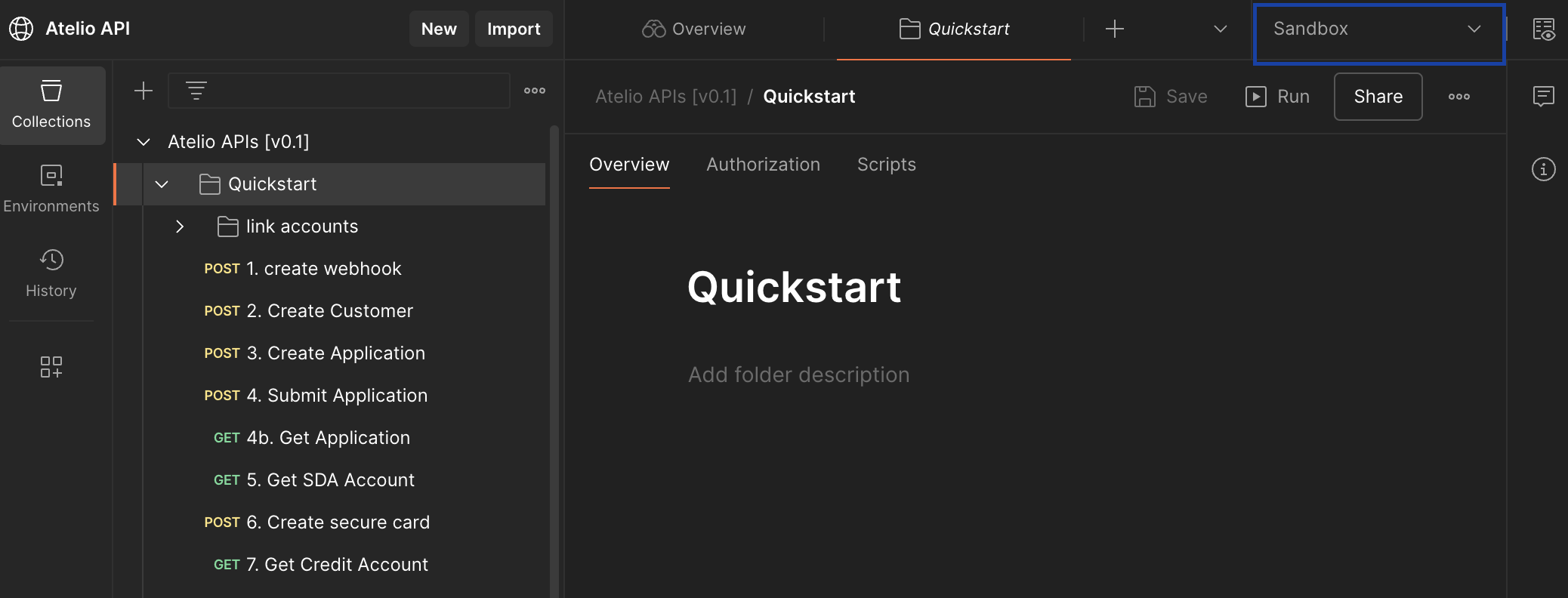
Postman
The Atelio platform APIs can be run in Postman two ways:
- In a web browser
- In a standalone application
▶ Run Postman in a web browser
Installing Postman
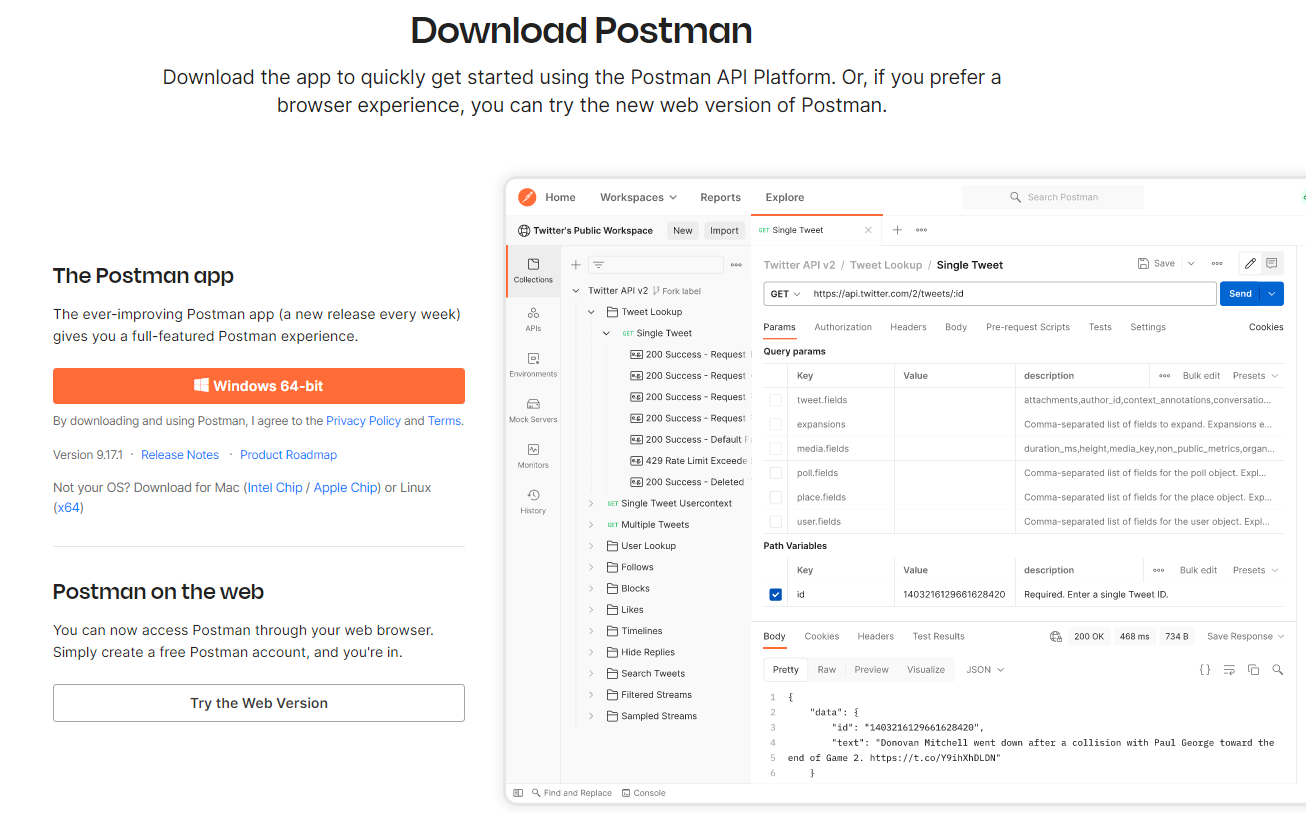
The standalone Postman application is available on a variety of platforms. Visit Postman to choose your platform.
To install Postman:
- Go to Postman downloads.
- Download the required version.
- After your download is complete, run the downloaded file to install Postman.
Import the Atelio collection
| 1. Click Atelio Postman API overview to open the Atelio API collection in a Postman browser. 2. Expand the collection to navigate to your desired API. 3. While hovering over the Send button, click the Create a fork button to import that API to your own workspace. For more information, see the Postman documentation on importing data. | 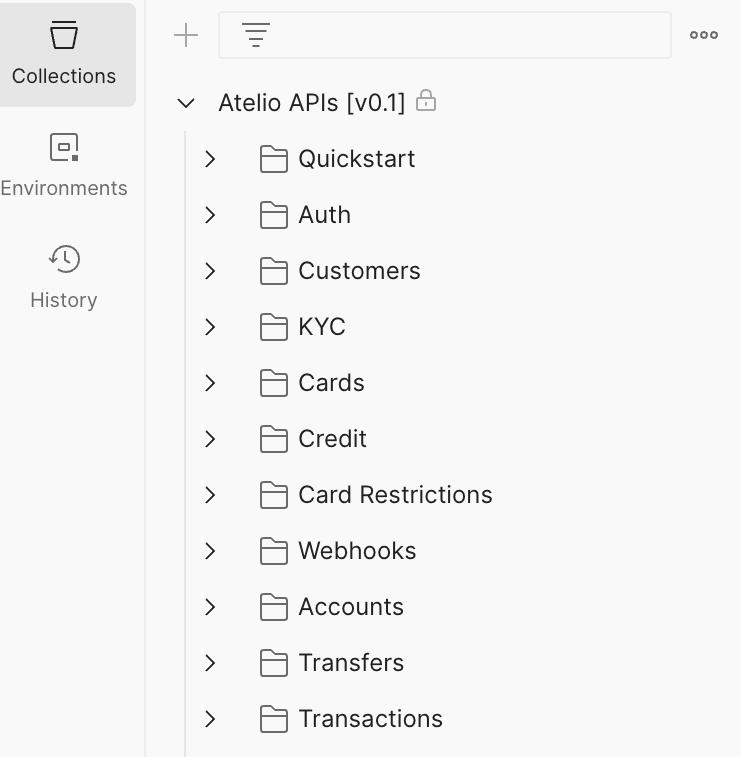 |
Configure your Postman
To configure your Postman environment, do the following:
Fork an environment
| To fork a copy of our Sandbox environment in the Public Workspace: 1. Right-click the collection name, such as Atelio APIs[v0.1] 2. Select Create a fork. | 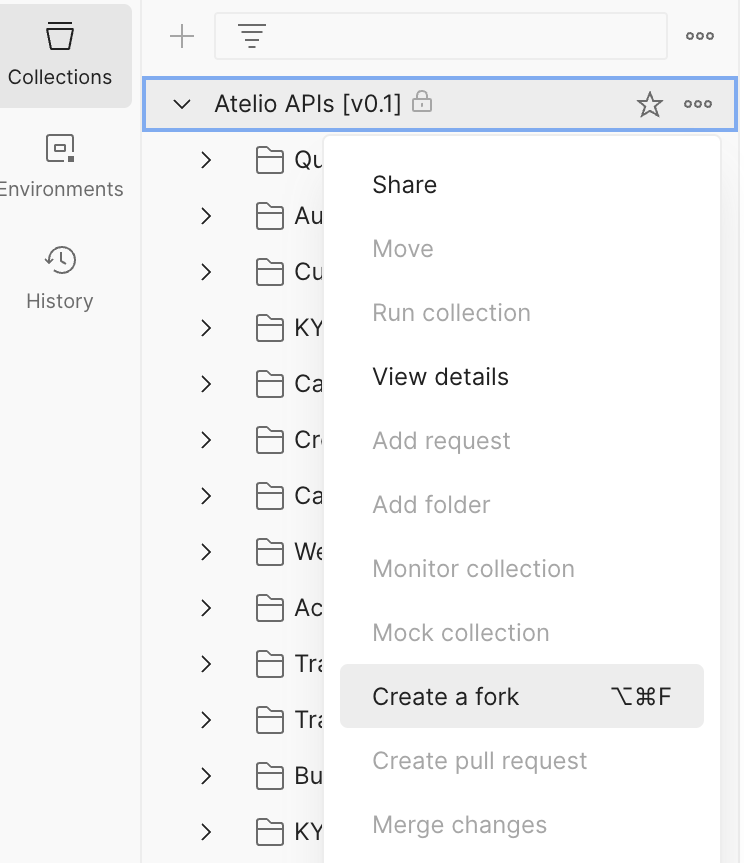 |
| In the Create Fork tab, enter the following fields: - Fork label - (defaults with your name) - Workspace - (defaults to My Workspace) - Environments to fork - Select Sandbox from the dropdown list Then click Fork collection. | 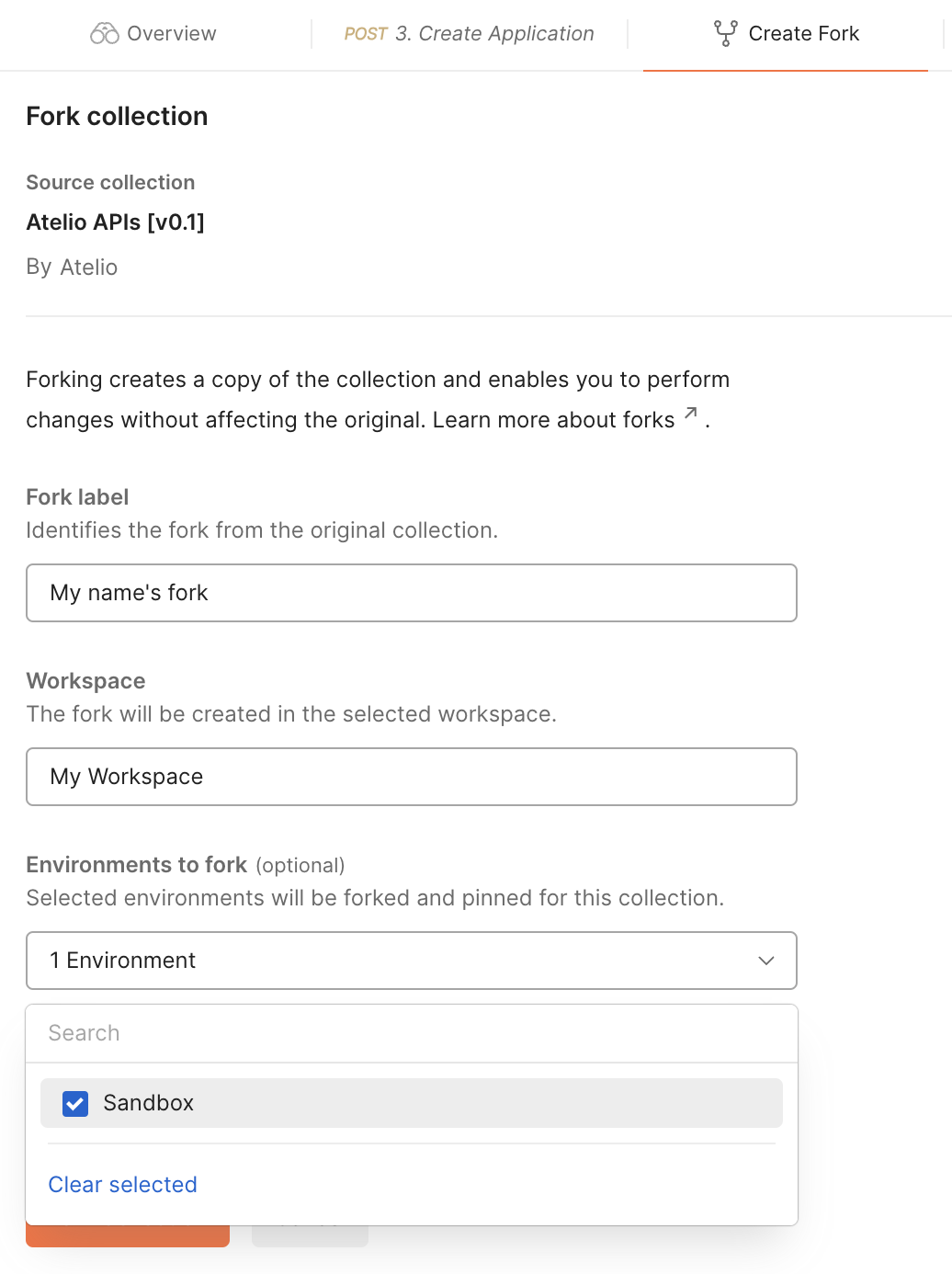 |
After you've forked your copy, you can enter your API identity and authorization tokens in your workspace.
📘 Note
If you are using Postman with our Production environment, enter your Production credentials you received from Atelio instead of your Sandbox credentials.
Set API keys
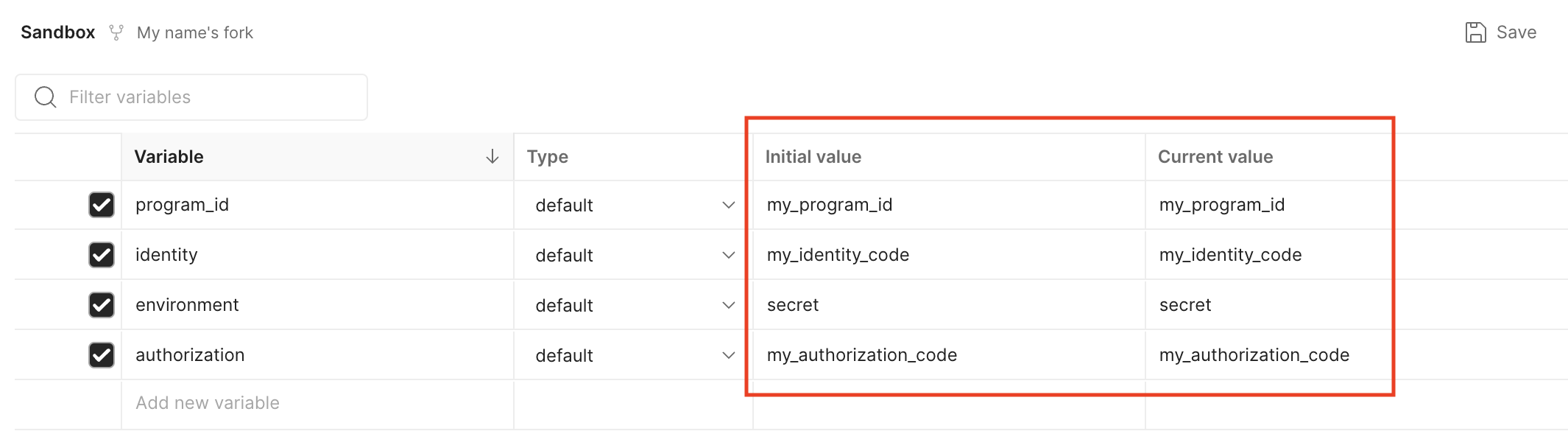
You will need to set your auth keys as variables in the environment you forked. You can set the variables in the headers in the environment tab within the postman collection
| Variable | Description |
|---|---|
identity | An authentication identifier used by Atelio API authentication service. Primarily this is used to identify which organization a request originates from. Found in Developers > API keys in Atelio Portal. |
authorization | The API key associated to the identity. |
program_id | Test program ID found in the Developers tab in Atelio Portal. |
📘 Important
Copy and paste your identity key and your authorization key into both fields:
- Initial value
- Current value
Best practices
- For secret management, see Postman Vault.
Execute requests
- Select the required environment.
- Select a request to execute.
- If required, you may need to enter or update some of the request bodies.
- Click Send.
When necessary, our collections define variables that are needed for downstream requests.